
Text to SVG for Laser Cutting
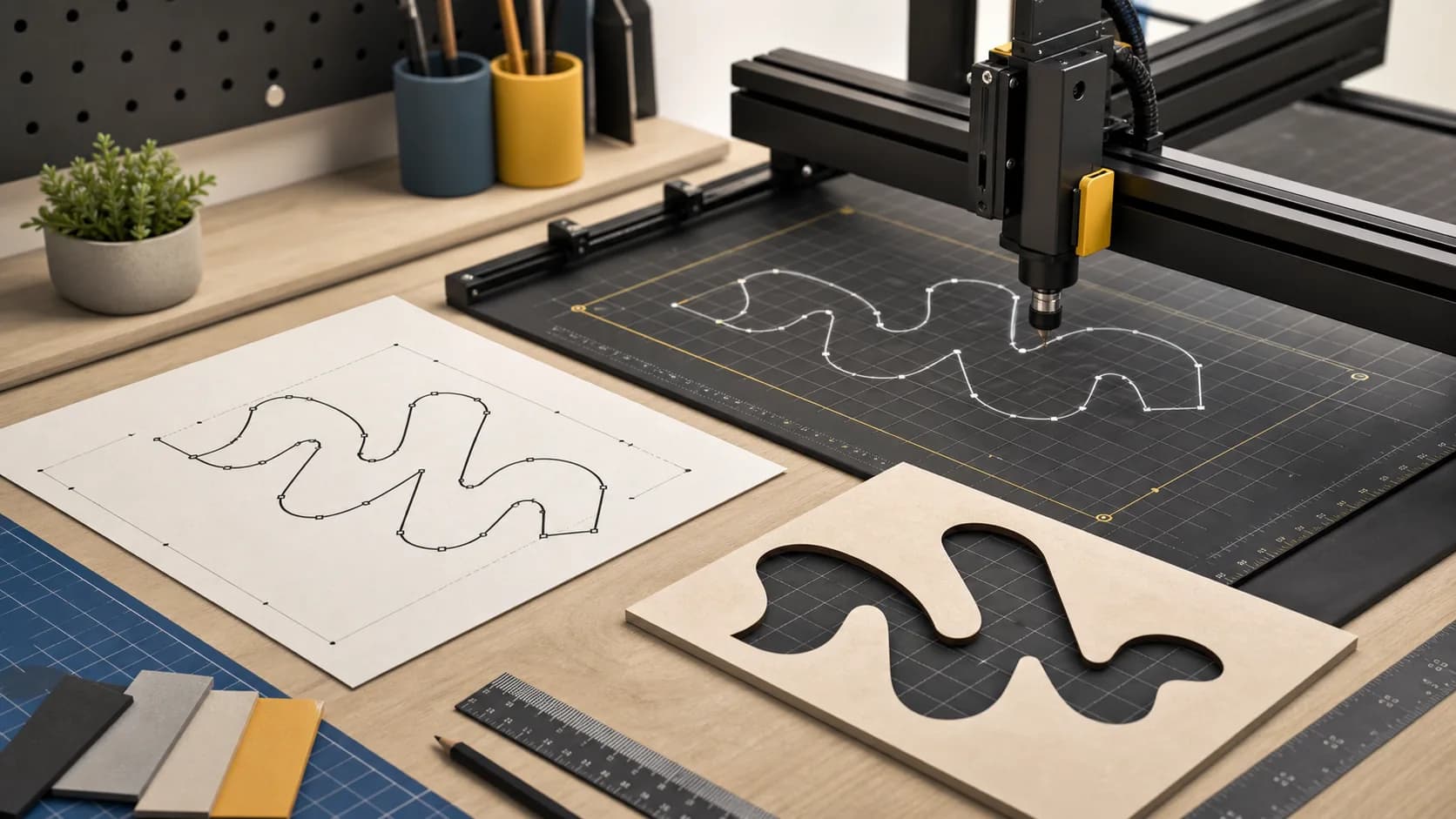
Laser cutting looks simple when the text is still on screen. Problems usually show up later: counters close up, thin strokes burn away, tiny joins snap, or the machine spends too long tracing decorative detail that never survives the material. Converting text to SVG paths early gives you a chance to inspect the geometry before the job reaches your cutter.
Why this matters
Laser workflows care about letterforms in a different way than web or print work.
- The cutter follows geometry, not typography intent.
- Very thin strokes may disappear or weaken after kerf and material burn.
- Tight spacing can merge letters visually or physically.
- Decorative fonts often produce complex inner curves that are slow to cut and hard to weed.
If you are cutting wood, acrylic, cardstock, leather, or thin sheet stock, cleaner geometry usually beats typographic flair. That is why a browser-based tool with fast iteration is useful here: you can change the font, spacing, or curve detail and immediately see whether the result still feels manufacturable.
Step-by-step workflow
1. Start with the shortest viable phrase
Do not build the final sign or label first. Start with the exact word or line you need to cut. If the project is a nameplate, test the nameplate. If it is a product label, test the label at production size.
2. Choose a font that can survive cutting
Fonts with open counters and moderate stroke width are easier to fabricate. Sans-serif families, geometric display fonts with simple construction, and sturdy slab styles usually hold up better than script fonts or ultra-thin serif designs.
As a starting point:
- Prefer medium or bold weights over thin or light weights.
- Avoid very condensed fonts for small parts.
- Be careful with script fonts where entry and exit strokes become fragile bridges.
- Inspect letters like
a,e,s,r, andgfirst, because they expose weak details quickly.
3. Set the output for inspection, not decoration
In TextToSVG, it helps to preview with settings that make manufacturing issues obvious.
- Turn kerning on unless you are deliberately loosening spacing.
- Keep standard ligatures off if they create unexpected joins in fabrication text.
- Use separate characters when you want to inspect each letter boundary, especially for stencils, cutouts, or manual layout.
- Set units to
mmorinso the preview maps more directly to real size decisions.
4. Adjust spacing before you export
Laser-cut text often fails because it was spaced for a screen, not for a toolpath.
- If letters feel crowded, add a small amount of letter spacing.
- If counters look close to closing, either increase size or switch to a more open font.
- If disconnected letters feel too delicate, consider a heavier weight instead of trying to solve everything with stroke.
5. Tune bezier accuracy only as far as you need
More accuracy means smoother curves, but it can also mean more geometry. For many cutting jobs, moderate bezier accuracy is enough. If a letter still looks visually clean and your CAM software reads it well, there is no benefit in exporting excessive point detail.
For a broader breakdown of settings tradeoffs, see Best Settings for Clean SVG Text Export.
6. Export, inspect, then test on scrap
Before the final cut:
- Open the SVG in your cutting software.
- Check overall size in real units.
- Zoom in on small counters and narrow bridges.
- Confirm that shapes are closed where they need to be closed.
- Run a small material test on the thinnest or most detailed area first.
Recommended settings and practical tips
These are not universal values, but they are a reliable starting point for laser work:
- Units:
mmorin - Kerning: on
- Ligatures: off unless the joined shape is intentional and sturdy
- Bezier accuracy: medium
- Separate characters: on for inspection, then decide whether your downstream workflow prefers separate or combined geometry
- Filled preview: useful for spotting closed counters and tight joins
Practical habits matter as much as export settings:
- Cut a single difficult word before laying out a full sign.
- Compare two fonts at the same physical height, not just the same point size.
- If the text is going to be painted, engraved, or backlit, inspect negative spaces as carefully as outer shapes.
- If the design depends on very small inner holes, ask whether that detail is still visible at the finished size.
Common problems before the cut
Thin strokes
If a font looks elegant on screen but weak in material, move up a weight or increase the overall size. In manufacturing, a sturdier font is usually the cleaner fix.
Overly dense lettering
Reduce tracking pressure. Add a small amount of letter spacing or choose a less condensed family. Tight spacing that works in a logo mockup can become a practical problem when cut.
Lost interior holes
Check counters in a, e, o, p, and R. If they are too small relative to material thickness or kerf, use a larger size or a simpler typeface with more open forms.
Decorative detail that disappears
Swashes, sharp terminals, tiny serifs, and ornamental cuts often vanish in real material. If the detail does not survive a zoomed preview at production size, it is not ready for fabrication.
Letters that should not fall out
If you are cutting standalone letters or stencil-style shapes, think about bridges and internal islands before export. Path quality alone cannot solve a design that needs structural connections.
For a troubleshooting-focused companion, see Common Text-to-SVG Mistakes and How to Fix Them.
FAQ
What kinds of fonts are safest for laser cutting?
Open, sturdy fonts with moderate stroke width are the easiest starting point. Medium and bold sans-serifs usually behave better than delicate scripts or ultra-thin display faces.
Should I export as filled shapes or strokes?
For most cut lettering, filled path shapes are easier to evaluate because you can judge the real body of the letter. Your cutting software may still convert that geometry into toolpaths later.
Is higher bezier accuracy always better?
No. Higher accuracy can make curves smoother, but it can also create heavier geometry. Use the lowest setting that still preserves the letterform cleanly.
Should I combine or separate characters?
Separate characters are useful when you want to inspect or position letters individually. Combined geometry can be cleaner for some downstream files. Test both against your cutter workflow.
The best time to fix laser text is before the file leaves the browser. A quick check on spacing, stroke strength, and curve complexity will save more time than trying to rescue a weak SVG in CAM software later.
Try the tool with your own text
Open the main TextToSVG tool to test the settings from this blog post in your own browser, or return to the blog for more workflow articles.