
Text to DXF for CNC
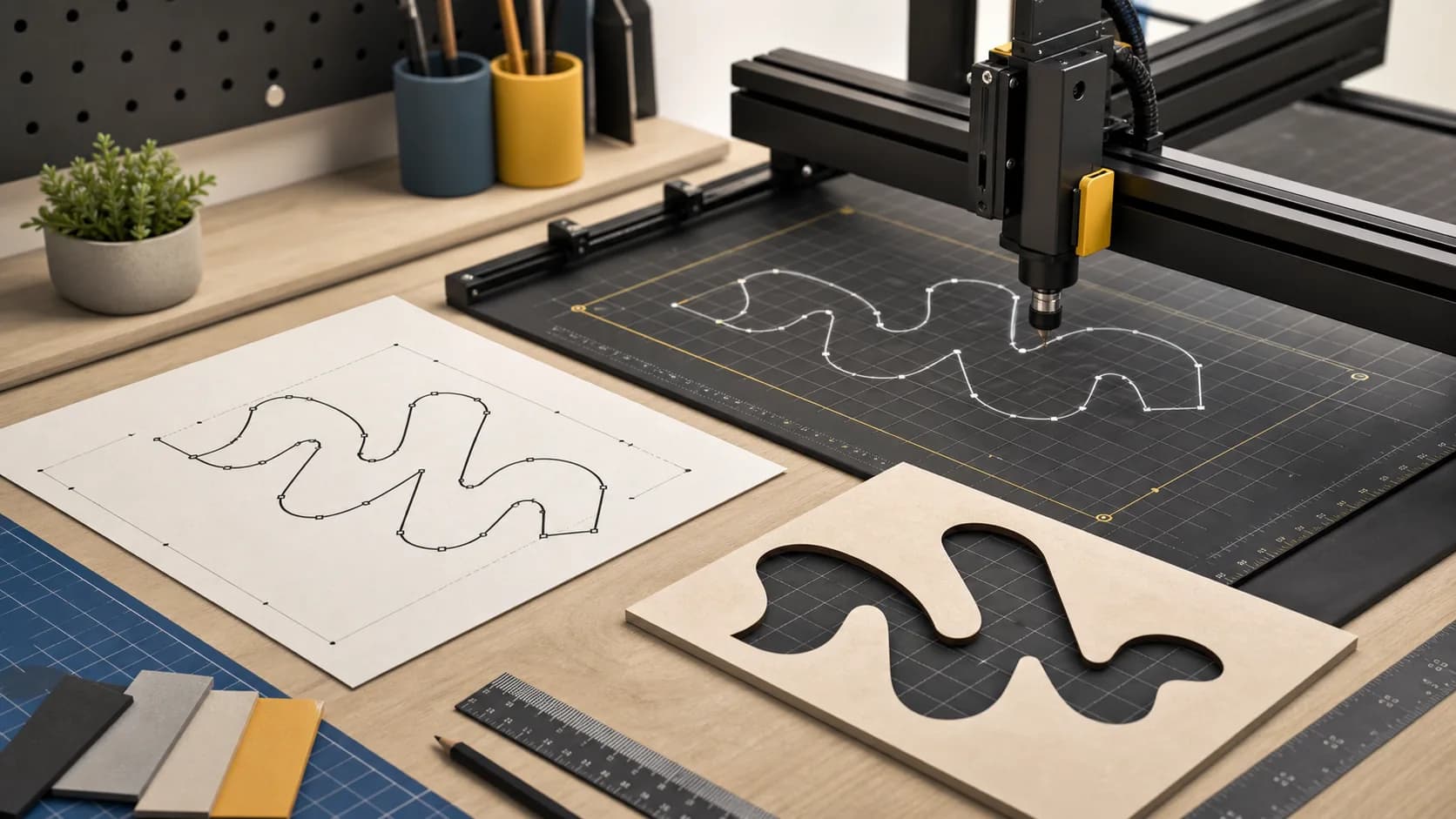
Not every CNC workflow wants SVG. In many shops, DXF is still the easiest handoff format because the next tool in the chain expects CAD-style geometry rather than a web graphic. If your starting point is text, the job is not just converting letters into lines. The real job is preparing geometry that is readable, machinable, and proportioned for the tool that comes next.
Why this matters
DXF is often preferred in CNC workflows because it fits better into CAD and CAM software, especially when the rest of the job already lives in that ecosystem. But text can become a bad DXF surprisingly quickly.
Typical problems include:
- overly complex curves from decorative fonts
- tiny internal details that do not machine cleanly
- spacing that looks fine visually but creates weak or cluttered geometry
- excessive point density that makes downstream cleanup harder
The goal is not the fanciest type. It is readable geometry that behaves well when converted into toolpaths.
Step-by-step guidance
1. Confirm that DXF is really the format you need
If your downstream tool reads SVG well, use SVG. If your CAD or CAM environment expects DXF and that reduces cleanup, export DXF from the start. The best format is the one that creates the least translation work later.
For a browser-based workflow, use the free text to DXF converter for CNC and CAD to preview the lettering before downloading the geometry.
2. Pick fonts for machinability, not just style
For CNC cutting, routing, or engraving, the same rule applies as in laser work: simple fonts usually win.
- Favor open counters and moderate stroke widths.
- Be careful with script fonts and ornate serifs.
- Avoid condensed faces when the final size is small.
- Check how inner corners and narrow joins behave before exporting a full layout.
If you are also working with cut lettering, the laser-focused guide on Text to SVG for Laser Cutting covers many of the same type selection concerns.
3. Build the text at realistic physical scale
Set units to mm or in and preview the text with physical output in mind. A word that feels readable in a large browser preview may become difficult to machine once it is only a few millimeters tall.
4. Use typography controls to reduce downstream cleanup
In TextToSVG:
- Turn kerning on for more natural default spacing.
- Use ligatures carefully. They can improve display typography but may create joined details that are harder to machine.
- Keep bezier accuracy moderate unless the job truly requires higher curve fidelity.
- Toggle separate characters depending on whether your CAM workflow prefers individual letters or a simpler combined shape.
5. Export DXF and inspect it before machining
Once the text is exported:
- open it in the CAD or CAM tool you actually use
- zoom into small counters and sharp transitions
- confirm overall dimensions
- inspect whether curves became overly dense or awkward
- run a toolpath preview before you commit stock material
The best moment to catch geometry problems is before feeds, speeds, and cutting order enter the picture.
Recommended settings and practical tips
These defaults work well as a first pass:
- Units:
mmorin - Kerning: on
- Ligatures: off unless you want the joined form intentionally
- Bezier accuracy: medium
- Separate characters: depends on your toolchain; test both if unsure
Practical tips:
- Use the simplest font that still fits the project.
- Compare two typefaces at final part size, not at arbitrary preview scale.
- If the geometry looks crowded in preview, it will usually feel worse in CAM.
- Keep one test word that contains difficult forms such as
R,S,a,e, andg. - If you are engraving rather than cutting through, detail limits still matter. Small decorative geometry often creates noisy or inconsistent results.
For a more general settings guide, see Best Settings for Clean SVG Text Export. The same settings logic often carries over before DXF export.
Common CNC-side mistakes
Curves that are too complex
A highly decorative font can produce geometry that is technically valid but unpleasant to machine. If the curve network feels busy at preview scale, simplify the font before you try to simplify toolpaths.
Detail that exceeds the process
Very small serifs, inner holes, and thin joins may not survive the cutter, bit, or material. Increase size, increase stroke strength through font choice, or switch to a sturdier family.
Spacing that creates messy toolpaths
Letters that nearly touch can be harder to interpret and harder to cut cleanly. A slight spacing increase is often enough to make the output look calmer and machine better.
Choosing the wrong output goal
If your CAM software is happiest with closed shapes, do not force a stroke-based visual idea into that workflow. Start with the geometry the machine wants, not the geometry that merely looks interesting.
Skipping the preview in downstream software
The DXF export is not the final answer. The final answer is how the job behaves in the software that creates toolpaths. Always inspect there.
FAQ
Why use DXF instead of SVG for CNC?
Because many CAD and CAM tools accept DXF more naturally. If your workflow already lives in that environment, DXF can reduce translation friction.
What fonts are best for CNC text?
Fonts with open counters, moderate stroke widths, and simpler construction are easier to machine and easier to troubleshoot.
Is higher bezier accuracy better for DXF?
Only up to the point where the curves look clean. Beyond that, higher detail can create more geometry than the workflow needs.
Should I separate characters before DXF export?
Sometimes. Separate characters can help with manual placement and inspection. Combined geometry can be simpler for other toolchains. Test whichever option matches your downstream software.
Clean CNC text starts with restraint. A readable font, sensible spacing, and moderate curve detail usually outperform a more dramatic design that has to be rescued later in CAM.
Try the tool with your own text
Open the main TextToSVG tool to test the settings from this blog post in your own browser, or return to the blog for more workflow articles.