
From Brief to Production SVG: A Complete Text Logo Workflow
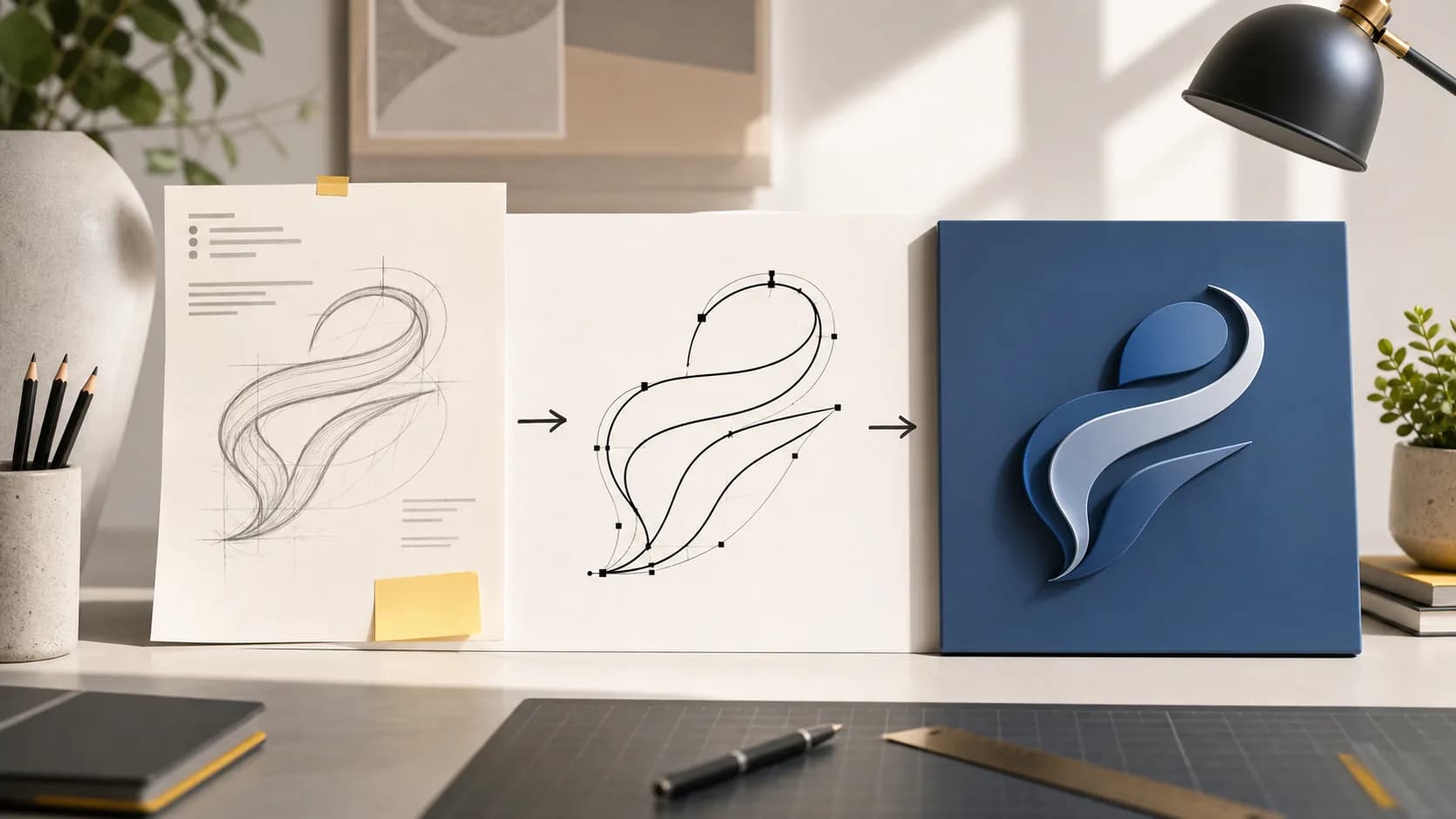
A text logo is easy to start and surprisingly easy to finish badly. Choosing a font and clicking download may create valid SVG, but it does not prove that the wordmark will survive a small mobile header, a dark theme, a Figma handoff, or a physical sign.
This worked example follows a fictional product named Northline. It is a design exercise, not a documented customer project: the dimensions below are proposed acceptance tests, not measured test results.
The goal is one master wordmark that can support:
- a website header at 120–180 pixels wide;
- a React component that inherits color;
- a high-resolution presentation;
- a vinyl test at approximately 80 millimetres wide;
- a design handoff that does not require the recipient to install a font.
1. Turn the brief into measurable constraints
“Make it modern” is not a production constraint. Before opening the generator, translate the brief into checks that can pass or fail.
For Northline, the useful constraints are:
- The name must remain readable below 140 pixels wide.
- The silhouette should feel calm and technical, not playful.
- The counters in
oande, and the open shoulder ofh, must remain distinguishable. - The asset must work as a single color.
- No stroke may be required to make the logo legible.
- The receiving team should be able to recolor the SVG without editing path data.
These constraints immediately rule out delicate scripts and high-contrast display serifs. They also tell us that a very light weight is a poor starting point.
2. Compare fonts with the real name
Never approve a font using only Hamburgefonts, Text To SVG, or another specimen phrase. Type the real name and compare the exact letter pairs.
For this example, preview Northline in Inter, Roboto, Montserrat, and Open Sans.
- Inter feels compact and product-oriented.
- Roboto is neutral and familiar.
- Montserrat gives the name more display presence but consumes more width.
- Open Sans is friendly and readable, although its wider rhythm makes the header constraint harder.
Inter at weight 700 becomes the working direction. That is not because Inter is universally “best for logos.” It is because its proportions satisfy this brief with fewer corrections.
3. Establish spacing before converting to paths
Spacing should be judged at the expected display size, not only on a large editing canvas.
Start with kerning enabled and letter spacing at zero. Then preview at 120, 140 and 180 pixels wide. Check the spaces around rth, hli and lin in the rendered word; there is no universal correction for these pairs. If one local gap is wrong, adjust that pair in a vector editor after exporting instead of changing the spacing of the entire name.
Our working settings are:
| Setting | Value | Reason |
|---|---|---|
| Font | Inter | Compact product tone |
| Weight | 700 | Holds up in a small header |
| Kerning | On | Preserves designed letter-pair spacing |
| Letter spacing | 0 | Avoids artificial gaps |
| Ligatures | On | Safe for this phrase |
| Fill | Solid | Keeps the asset simple |
| Stroke | Off | Prevents overlap and scaling issues |
| Curve accuracy | Medium | Clean curves without excessive points |
If the wordmark later needs custom pair adjustments, do that in a vector editor after the clean baseline export. Do not solve every optical issue with one global tracking value.
4. Export a master SVG, not five final variants
The master file should preserve the design while remaining easy to adapt.
Export one SVG with:
- a tight
viewBox; - filled paths;
- no background rectangle;
- no unnecessary stroke;
- no embedded bitmap;
- no transform that can be replaced by direct coordinates;
- the complete word as one visual unit.
For a reproducible first pass, open the Text to SVG generator with Northline as the input, choose Inter / 700, leave kerning on, use solid fill and no stroke, then download SVG. Check the export in a second viewer before editing it. The generator converts the characters to paths, but it cannot decide whether this font is distinctive enough for a particular brand.
Download the actual outline study

Download the Northline SVG sample. It was generated with Inter 700 at 96 px, kerning and standard ligatures enabled, black fill, and no stroke. The saved file has one path element and a 439.047 × 120.156 viewBox. Open the file in a browser or vector editor to inspect the real contours. This is an exported design study; the proposed 120–180 px header and 80 mm vinyl tests below have not been recorded as passed.
Keep a note beside the file recording the font family, source, weight, generator settings, and date. The SVG itself no longer contains editable text, so this small record prevents future guessing.
A practical filename is:
northline-wordmark-master.svg
Avoid filenames such as logo-final-final-2.svg. A clear role in the name is more useful than a claim that the design will never change.
5. Inspect the path at three zoom levels
Path review should include the whole word and individual nodes.
At normal viewing size
Ask whether the wordmark reads immediately and whether the spacing feels even. Test light-on-dark and dark-on-light. A thin counter that disappears on one background is still a problem.
At the smallest real size
Render the mark at 120, 140, and 180 pixels wide. Do not rely on browser zoom alone; set the actual CSS width. Check o, e, the open shoulder of h and any tight joins. Record the smallest size that actually passes; 120 pixels is a test size, not a promised minimum.
At high zoom
Look for:
- accidental self-intersections;
- duplicate outlines;
- spikes at curve joins;
- unexpectedly dense point clusters;
- shapes extending outside the viewBox;
- clipped antialiasing at the edges.
More points do not automatically mean more quality. The goal is enough geometry to represent the shape cleanly.
6. Make the React version theme-ready
The generator can export a React JSX or TSX component. Its generated root <svg> exposes a fill prop, but the inner <g> can also have an explicit fill color. An explicit fill on that group wins over a color inherited from the root. To make the mark follow the surrounding text color, change the inner group's fill to currentColor (or to a component prop), then verify the rendered result in both themes.
For example, the relevant part of the edited component can be:
<svg viewBox="0 0 420 100" role="img" aria-label="Northline">
  <g fill="currentColor">{exportedPaths}</g>
</svg>
Here, exportedPaths stands for the path elements from your export. The viewBox numbers are illustrative; keep the exact bounds from your own file instead of copying 420 × 100.
The component wrapper should:
- accept a
className; - preserve the SVG
viewBox; - use
role="img"andaria-label="Northline"when the logo communicates the brand name; - become
aria-hidden="true"only when the same name is already present as visible text; - avoid fixed width and height unless the design system requires them.
The path is visual artwork, not semantic text. An accessible name is still required when the logo conveys the brand. MDN's guidance on the image role shows the labelled inline SVG pattern.
7. Prepare the design handoff
Give the receiving designer:
- the master SVG;
- a preview PNG for quick identification;
- the font and weight record;
- the minimum tested width;
- approved color rules;
- a note that proportions must not be stretched.
In Figma, verify that the imported SVG has the same bounds and appearance as the browser preview. If the tool expands groups or changes the frame, correct the frame rather than scaling the path non-proportionally.
8. Run a physical test before calling it production-ready
For the proposed vinyl check, import the SVG into the cutter's software and measure the wordmark at 80 millimetres wide. The generator's unit selector does not guarantee an 80 mm final layout by itself. Inspect the smallest interior spaces against the cutter and material tolerance. Cut a single test rather than a full batch.
The test answers questions a monitor cannot:
- Are small counters easy to weed?
- Do narrow joins lift?
- Does the material make the chosen weight look heavier?
- Is the word readable at the intended viewing distance?
If the physical result fails, return to font weight, size, or spacing. Do not keep adding outlines until the original letter design is unrecognisable.
| Destination | Acceptance check | If it fails |
|---|---|---|
| Mobile header | Readable at the smallest intended CSS width in light and dark themes | Increase size or revise spacing/weight |
| React component | Color follows currentColor; accessible name is announced once | Inspect inner fills and SVG labelling |
| Design handoff | SVG bounds and appearance match the browser preview | Correct the imported frame without stretching the paths |
| Vinyl cut | Actual 80 mm test weeds cleanly, with open counters | Adjust size or simplify narrow features, then retest |
These are pass/fail criteria for a future test. No pass is implied until the asset is rendered, imported or cut in the receiving environment.
Final preflight checklist
Before approving a text logo SVG, confirm:
- the real name was tested, not only specimen text;
- the smallest digital size remains readable;
- the viewBox does not clip any edge;
- fill and color behavior are documented;
- the asset has an accessible name in code;
- no recipient needs the source font to display the logo;
- the font source and weight are recorded for future edits;
- any physical use has been tested at real dimensions;
- the file has one clear master version.
Conversion is one step inside a workflow. A production SVG is ready only after its spacing, geometry, accessibility, integration and destination have been checked. For implementation details, see the React SVG guide and the outlined SVG text in Next.js guide.
Related tools and guides
Try the tool with your own text
Open the main TextToSVG tool to test the settings from this blog post in your own browser, or return to the blog for more workflow articles.