
How to Convert Text to SVG for Illustrator
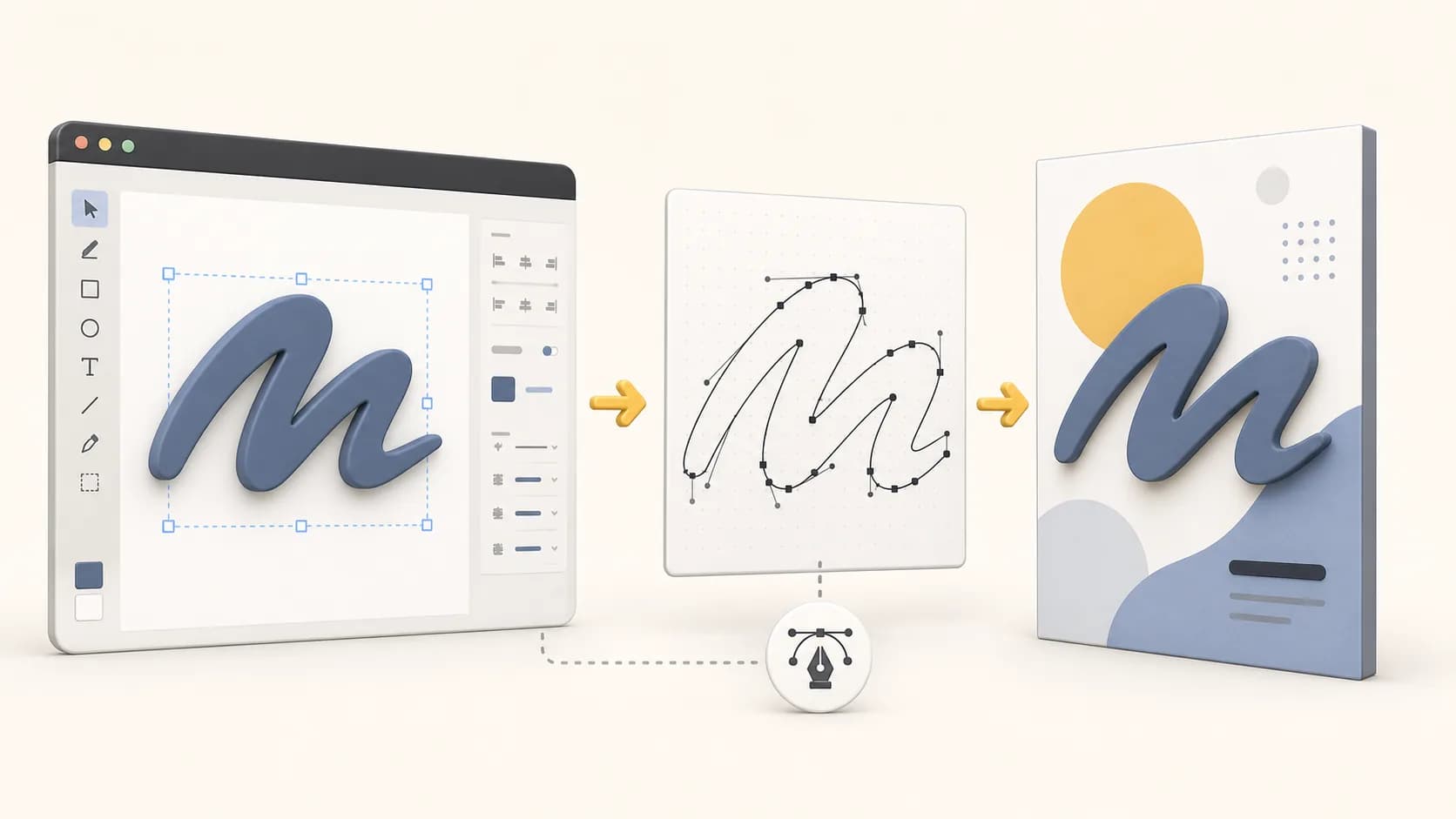
If you've ever sent an .ai file to a client or printer and got back a message like "missing fonts" — you already know the problem this article is about.
Why Font Dependencies Break Your Workflow
When you place live text in Illustrator, the file doesn't embed the font itself — it references it. The moment that file opens on a machine without the same font installed, Illustrator either substitutes something ugly or throws a missing-font warning.
This isn't a bug. It's how vector text works. But it causes real friction in three specific situations:
- Client handoffs: You use a licensed font they don't own. Their machine can't render it. The layout breaks.
- Print production: The print shop runs a preflight check. Live text with missing fonts gets flagged and production stops.
- Cross-team collaboration: A colleague opens your file on a different OS. Fonts render slightly differently even when installed — especially on Windows vs macOS — and spacing shifts.
The fix is converting text to outlines (paths) before the file leaves your hands. Once it's a path, it's just geometry. No font needed.
When You Actually Need to Convert Text to Paths
Not every text element needs to be outlined. Here's when it genuinely matters:
Convert to paths when:
- The file is going to print, laser cutting, or any fabrication workflow
- You're handing off a final logo or wordmark
- The font is licensed and can't be shared
- You're embedding the SVG directly in a web page and don't want to load a webfont
- You're exporting to a format that strips font metadata (like DXF for CNC)
Leave as live text when:
- The document is still in draft and copy will change
- You're the only one working on it and you have the font installed
- You need the file to stay editable long-term
The tradeoff is simple: paths are portable but no longer editable as text. Decide before you outline.
How to Convert Text to SVG Using texttosvg.app
texttosvg.app runs entirely in the browser. No install, no upload queue, no account. Here's the actual workflow:
Step 1: Type your text
Paste in the copy you want to outline — a logo name, a tagline, a single word. The preview updates in real time.
Step 2: Choose a font and tune the settings
The tool pulls from Google Fonts directly. Pick your family and variant. Then adjust:
- Tracking — overall letter spacing
- Kerning — optical spacing between specific pairs (turn this on for logos)
- Bezier Accuracy — higher values produce smoother curves; lower values produce fewer anchor points (useful if you're going into Illustrator and want a clean, editable path)
- Separate Characters — exports each letter as its own path object, handy if you're animating or cutting individual characters
Step 3: Export
Hit Download SVG. You get a clean .svg file with every letter converted to a <path> element. No <text> tags, no font references.
One thing worth noting: the tool also exports DXF and JSX/TSX — so if your next step is a CNC machine or a React component, you don't need a second tool.
Bringing the SVG into Illustrator and Checking the Result
Open Illustrator. Go to File → Open (not Place — Open gives you a clean editable document).
Once the file is open, do this quick sanity check:
1. Run a font check
Go to Type → Find Font. If the dialog is empty or shows only system fonts with zero instances, you're clean. No live text survived the conversion.
2. Inspect with the Direct Selection tool (A)
Click on a letter. You should see anchor points along the outline — not a text cursor. If you see a cursor, that character is still live text.
3. Check the Layers panel
Each letter (or the whole word, depending on your export settings) should appear as a <Path> or <Compound Path>, not a <Type> layer.
4. Try ungrouping
Press Cmd+Shift+G (Mac) or Ctrl+Shift+G (Windows) a couple of times. The paths should break apart into individual letter outlines. If anything remains grouped as a text object, it wasn't outlined.
Once everything checks out, you have a fully portable, font-independent vector file ready for print, handoff, or production.
One Practical Note on Bezier Accuracy
Illustrator users who plan to edit anchor points manually should export with a lower Bezier Accuracy setting. High accuracy means more points, which means more cleanup when you're nudging curves by hand.
For logos especially: convert at medium accuracy, import into Illustrator, then use Object → Path → Simplify to reduce anchor points further without visibly changing the shape. This gives you a path that looks identical to the original font but is much easier to manipulate.
Summary
| Situation | Action |
|---|---|
| Sending to print | Convert to paths first |
| Client handoff (final) | Convert to paths |
| Still editing copy | Keep as live text |
| Laser / CNC output | Use DXF export from texttosvg.app |
| React / web embed | Use JSX/TSX export |
| Illustrator check after import | Type → Find Font + Direct Selection inspection |
The whole process — type your text, pick a font, download the SVG, open in Illustrator — takes about 90 seconds. The font dependency problem it prevents can cost you hours.
Related tools and guides
Try the tool with your own text
Open the main TextToSVG tool to test the settings from this blog post in your own browser, or return to the blog for more workflow articles.