
Laser-Cut Sign SVG: A Worked Plywood Example
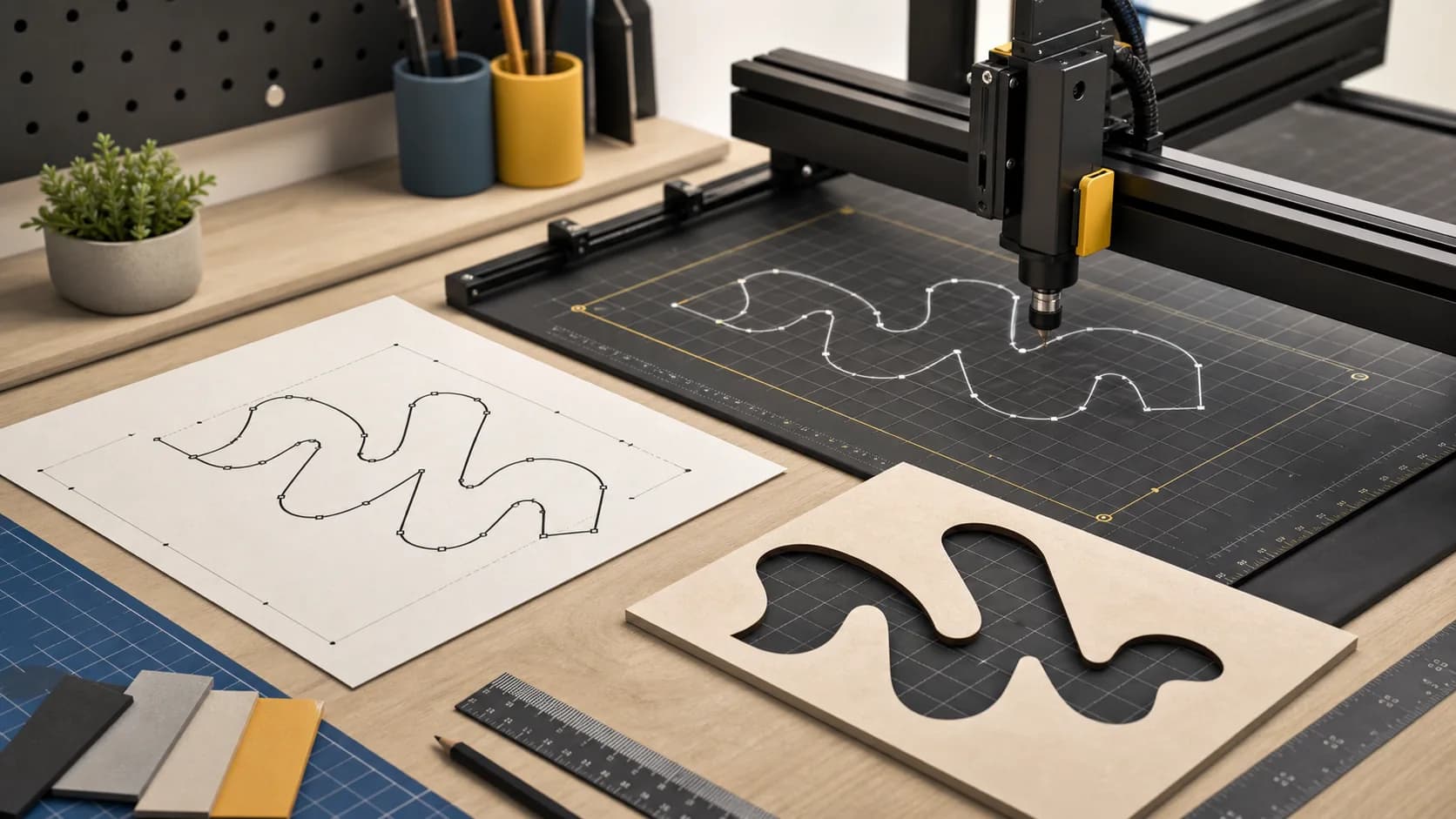
An SVG that looks good on screen is only a starting point for a laser-cut sign. Thin features may char or break, small offcuts may be lost, and an incorrectly imported file may arrive at the machine at the wrong size.
This is a worked design example, not a record of a completed cut or a customer job. The fictional brief is a 450 mm wide workshop sign reading MAKE / REPAIR / REPEAT, made from 3 mm plywood with separate letters fixed to a contrasting back panel. There are no claimed machine settings or measured results: those must come from a test on the intended machine and material.
1. Define the manufacturing method before choosing the font
The first question is not “Which font looks good?” It is “What will remain after the tool removes material?”
The proposed sign has:
- 3 mm plywood;
- a 450 mm overall width;
- separate, through-cut letter pieces;
- a separate back panel;
- a kerf to measure on the actual machine;
- a viewing distance to agree with the client;
- two layers bonded after cutting.
Two constructions must not be confused:
| Construction | What is retained | What happens to the centre of A, P or R? |
|---|---|---|
| Separate letters glued to a back panel (this example) | The letter shapes | The centre is waste; the back panel shows through the opening. No stencil bridge is needed. |
| One sheet with letters cut out as openings | The surrounding sheet | The enclosed centre becomes a loose island. Add bridges or mount that island to a backing layer. |
Decide which construction you are making before altering the letterforms. A bridge added to a separate letter would change the appearance for no structural benefit.
2. Select for shape resilience, not only style
Compare a sturdy sans serif, a condensed display face, and a script using the exact sign text.
A script may create convenient connections between letters, but it also introduces thin joins and overlapping contours. A high-contrast serif can look sophisticated, yet its hairlines are vulnerable to burning and breakage. A medium or bold sans produces fewer surprises.
For the proposed sign, use Montserrat 700 as a starting point, then inspect the actual exported shapes:
- the capitals create a strong silhouette;
- the wide forms read from a distance;
- the weight may leave more material at narrow joins than a light face;
- the three short lines can share a consistent width.
This is not a rule that every laser sign should use Montserrat. It is an example of matching construction needs to letter anatomy.
3. Work in final physical units
Do not postpone scale until the machine operator opens the file.
In the Text to SVG generator, enter the three lines, choose Montserrat and its 700 variant, and set SVG Options → Units to mm. Export an SVG, import it into the receiving software, and measure the complete layout there. The generator's font size is a typographic input; selecting mm alone does not make the sign 450 mm wide. Scale the imported paths proportionally to the approved 450 mm layout, then record the measured final letter height and narrowest feature.
Record:
| Constraint | Working value |
|---|---|
| Overall sign width | 450 mm |
| Material | 3 mm plywood |
| Typeface | Montserrat |
| Weight | 700 |
| Alignment | Three lines, centred |
| Back panel | Yes |
| Kerf and minimum feature | To measure on the actual setup |
| Test cut | Required |
The laser kerf is intentionally not guessed here. Kerf changes with machine, lens, focus, material batch, speed, and power. Measure it with a test pattern on the same material.
4. Inspect every enclosed counter
Letters are not just outlines; they define positive material, removed material, and loose interior pieces.
For MAKE / REPAIR / REPEAT, inspect:
- the triangular counter in A;
- the bowl in P;
- the enclosed upper counter and open leg of R;
- the open aperture in E at the final size;
- the diagonal join in K;
- spacing where adjacent letters create thin material strips.
In this separate-letter design, remove the A, P and R centre offcuts and allow the contrasting backing to show through. If the brief instead calls for a single stencil panel, retain and support those islands with bridges or a backing layer. Inspect the two layouts separately; they require different paths.
Do not assume a vector editor’s “outline” command creates a physically connected sign. It only creates geometry.
5. Account for kerf at the right stage
Kerf is the width of material removed by the laser. If accurate fit matters, compensate based on the measured result.
For a decorative sign, tiny dimensional changes may be visually acceptable. For inlays, press-fit counters, or parts that must return to their openings, they are critical.
A controlled workflow is:
- Cut a kerf test coupon.
- Measure several known slots or shapes.
- Determine the actual cut width from the measured difference between the nominal and cut geometry.
- Apply compensation in the CAM or vector workflow that the operator trusts.
- Cut one representative word before the full sign.
Avoid embedding an undocumented compensation into the master lettering file. Keep the clean design master and create a production copy with the machine-specific adjustment.
6. Choose SVG or DXF based on the receiving workflow
SVG is convenient for browser previews, design review, and many laser applications. DXF is common in CAD and fabrication software.
Inspect the files used in this study
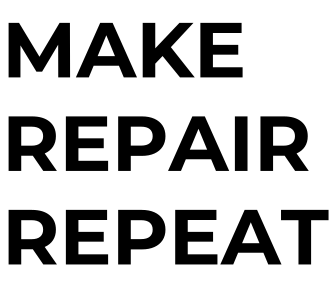
Download the SVG study or download the DXF study. Both were generated from the three-line wording in Montserrat 700 at a numerical font size of 78, with kerning enabled. The SVG contains three path elements and a 331.054 × 286.282 viewBox; the DXF declares millimetres. These are inspectable starting files, not a 450 mm production layout or evidence of a completed import or cut. Measure and scale them in the receiving software before using the proposed acceptance checks below.
Export both only if the vendor or machine workflow benefits from both. Two formats are not automatically safer; they can create ambiguity if nobody knows which one is authoritative.
For each file, verify:
- the imported width is 450 mm, not merely that the SVG declares mm;
- all text is converted to geometry;
- there are no hidden duplicate paths;
- the intended cut contours are assigned to a cut operation, rather than a fill or engrave operation;
- the page or drawing origin is sensible;
- line joins do not create spikes;
- the overall dimensions match the job sheet.
Ask the operator which format and import settings they use before final delivery.
Import check: draw a separate 10 × 10 mm square in a production copy of the file. After import, measure it in the laser/CAD software. If it is not 10 × 10 mm, resolve the unit conversion before scaling the sign. Delete the calibration square from the final cut layer or keep it clearly separated as a test feature.
If the shop uses LightBurn, its SVG import settings document how DPI choices can change imported scale. Check the receiving program's actual measurement rather than assuming every SVG importer uses the same rule.
7. Create a test coupon from the hardest details
A test coupon is more informative than cutting a scaled-down version of the entire sign.
Include:
- the narrowest part of an A letter;
- the narrowest E opening;
- the K diagonal;
- a small P or R counter opening;
- the closest letter spacing;
- one exterior corner;
- a short section at final letter height.
Place these details in a compact strip of the same plywood, at the final letter size. The coupon can reveal charring, incomplete cuts, weak joins and small offcuts that are difficult to remove. If the job later switches to vinyl, test weeding separately; plywood and adhesive film behave differently.
LightBurn's kerf test guide is one documented method for measuring a machine/material combination; its offset controls apply to closed shapes in that software. The sign still needs its own setup check.
If the coupon fails, adjust one variable at a time:
- increase weight;
- enlarge the letters;
- increase spacing;
- simplify the phrase;
- change the construction method;
- tune machine settings.
Changing everything at once makes the next result impossible to diagnose.
8. Prepare an assembly map
The visual SVG is not the entire job. A multi-layer sign also needs a plan for placement.
Create a low-resolution reference image that shows:
- finished appearance;
- overall dimensions;
- line spacing;
- back-panel alignment;
- which small pieces are waste and which letter pieces must be kept;
- the approved orientation;
- any safe margin around the edge.
Keep this reference separate from the cut file so annotations are never mistaken for toolpaths.
For this example, the handoff would contain make-repair-repeat-master.svg (editable design master), one machine-specific cut file agreed with the operator, and a dimensioned assembly reference. These are proposed deliverables, not files that have already been fabricated or tested.
9. Final fabrication preflight
Before sending the files:
- confirm the final wording and spelling;
- confirm physical dimensions;
- confirm material and thickness;
- confirm whether this is a separate-letter or stencil-panel construction;
- verify there are no duplicate paths;
- inspect all joins at high zoom;
- measure the smallest feature;
- document kerf handling;
- name one authoritative production file;
- include a clean visual reference;
- run and inspect the representative test cut;
- get operator approval before a full batch.
Text-to-path conversion supplies letter geometry; it does not verify machine settings, kerf or assembly. For a broader overview of laser-ready lettering, see the laser-cutting guide and the Text to SVG for laser cutting tool. Final dimensions and cut settings still require a real test on the target setup.
Related tools and guides
Try the tool with your own text
Open the main TextToSVG tool to test the settings from this blog post in your own browser, or return to the blog for more workflow articles.